

Until last week, my workday looked like this: I was constantly copying, pasting, and switching between windows. Every time I thought I’d found my flow, clicking the wrong window would pull me out of it again. It was frustrating and inefficient. In those moments, I wished I had a simple yet powerful tool to help me stay in control.
This tool is now available. It’s called Split View and is integrated directly into Google Chrome.
No more window chaos: What is Split View?
Split View is a new feature in Chrome that lets you view two tabs side-by-side in the same browser window. It might sound unremarkable, but in practice it’s a real game-changer. Instead of constantly switching back and forth between windows, you have everything you need at a glance.
You don’t need to install any external tools or learn complicated keyboard shortcuts. It’s a simple, elegant solution to a problem familiar to anyone who needs more than one tab open at a time.
Concrete use cases for your everyday NGO work
Abstract features are all well and good, but what concrete benefits do they offer for your work? Here are a few examples from everyday NGO life where Split View makes your life easier:
- The Fundraising Campaign:Write a personalized email to a major donor while keeping an eye on their profile from your CRM or their previous donations.
- Media relations:Write a press release and compare it in parallel with a fact sheet or the latest figures from a study, without constantly switching between the documents.
- Social-Media-Management:Observe the comments under a critical post and simultaneously formulate the answers according to your internal communication guidelines, which you have opened in the second tab.
- Project coordination:Plan an event while keeping an eye on the budget and the list of service providers. This way you can directly compare options and make informed decisions.
- Research and content creation:Write a blog post or report and have your sources, quotes, or inspiring articles open right next to it. No more tedious copying and pasting.
How to activate Split View in 30 seconds
Don’t worry, you don’t need to be a tech expert. Setup is incredibly easy:
- Right-clickon the first tab you want to see in split view.
- Select the option from the menu.“Add tab to new split view”.
- A list of your open tabs will now appear on the right. Select the second tab you want to display next to it.
That’s it! You can simply drag the dividing line between the two tabs with your mouse to adjust the width. To close the split view, simply click the split-view icon next to the address bar.
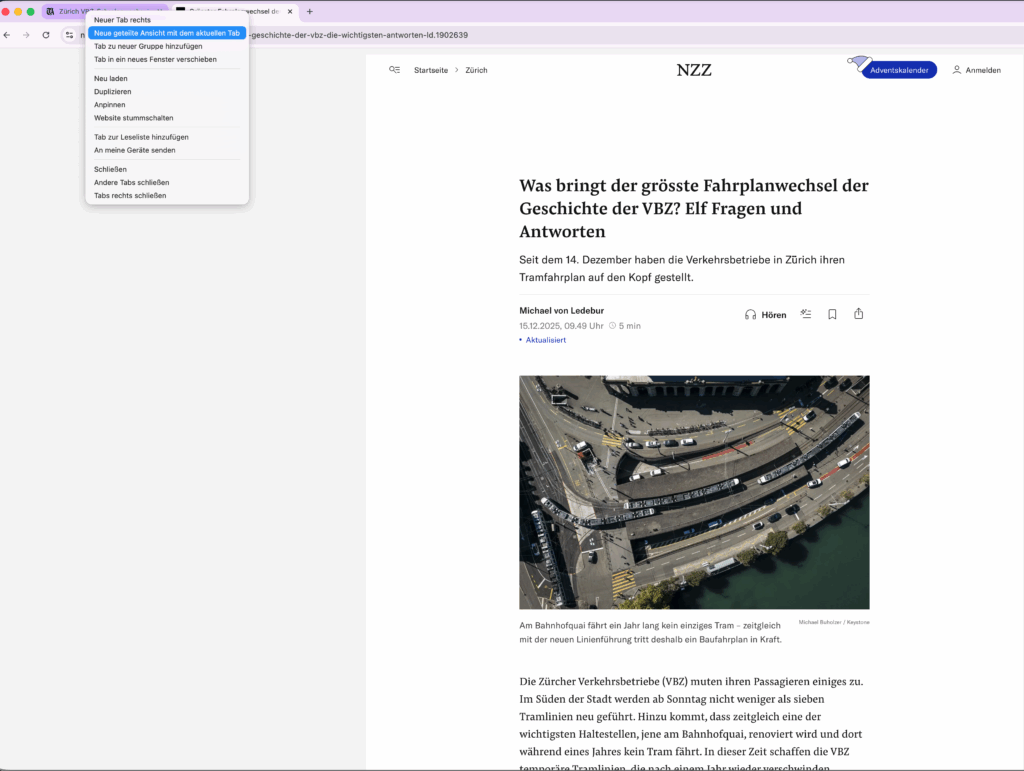

Here you can see how I compare two media articles on the same topic side by side.
One small step for Chrome, one giant leap for your productivity
At nowtec solutions, we are convinced that the right technology can make a huge difference. Often, it’s not the large, expensive software suites that have the greatest impact, but rather the small, well-designed tools that support us in our daily work.
Split View is exactly that kind of tool. It costs nothing, it’s easy to use, and it solves a real problem. It gives you back a measure of control and focus in a work environment that’s becoming increasingly noisy and chaotic.
Try it out. It’s the small efficiency gains like these that ultimately free up your mind for what really matters: your mission.